Cybersecurity Lab
Active Directory Domain Controller Setup
Building a Windows Server 2022 domain controller from scratch — starting with static IP addressing on the Parallels shared network and a standards-based server rename to HNH-DC01.
In Progress2026Intermediate
Objective
Prepare a Windows Server 2022 virtual machine for the Active Directory Domain Services role: give it a fixed IP that survives reboots, point DNS at itself ahead of the AD DS install, and rename the host to a real-world domain controller naming convention.
Tools Used
Windows Server 2022Parallels DesktopServer ManagerCommand Prompt
Steps Performed
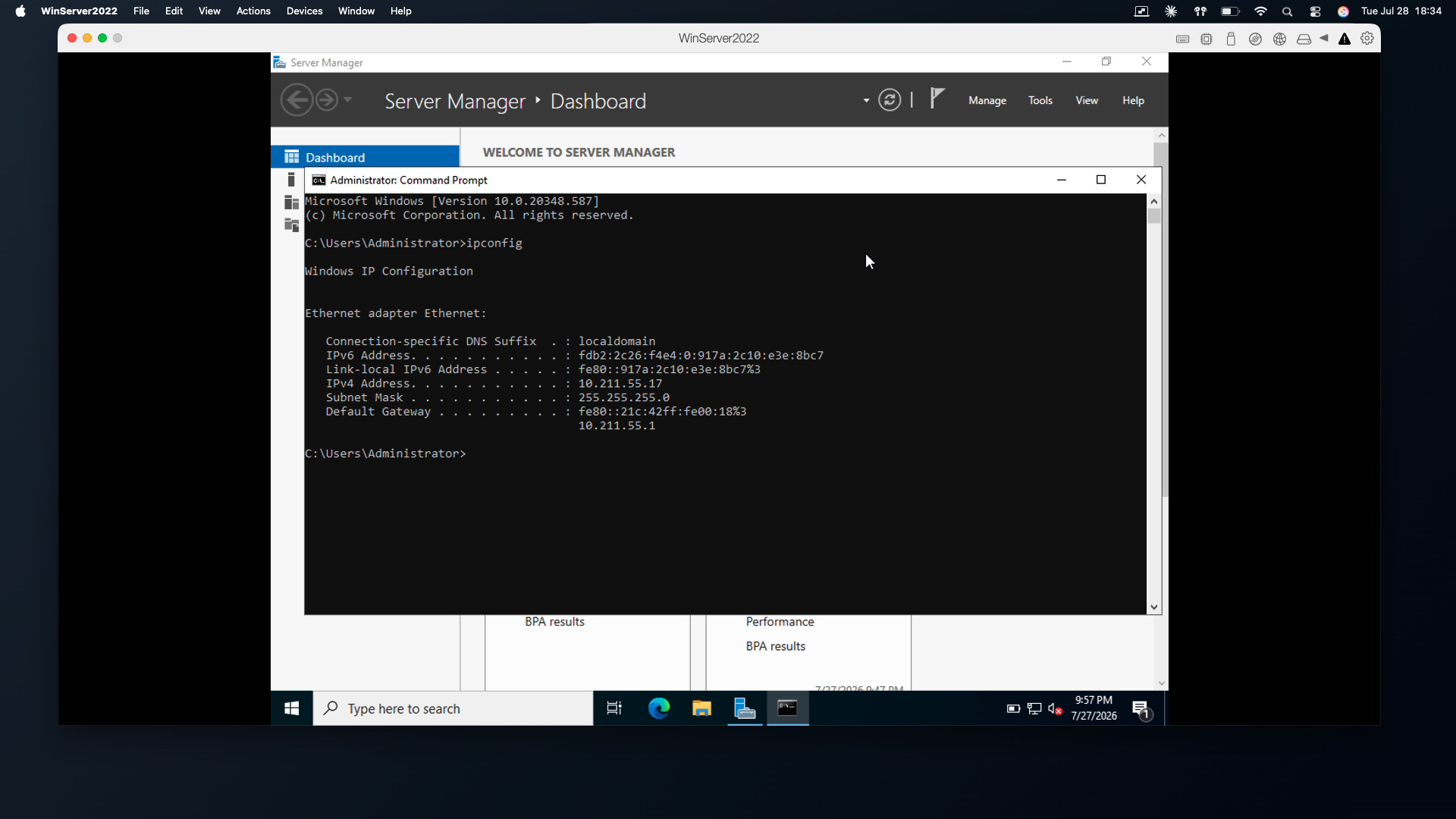
- Ran `ipconfig` to capture the baseline network configuration before making changes — IPv4 10.211.55.17, subnet mask 255.255.255.0, gateway 10.211.55.1.
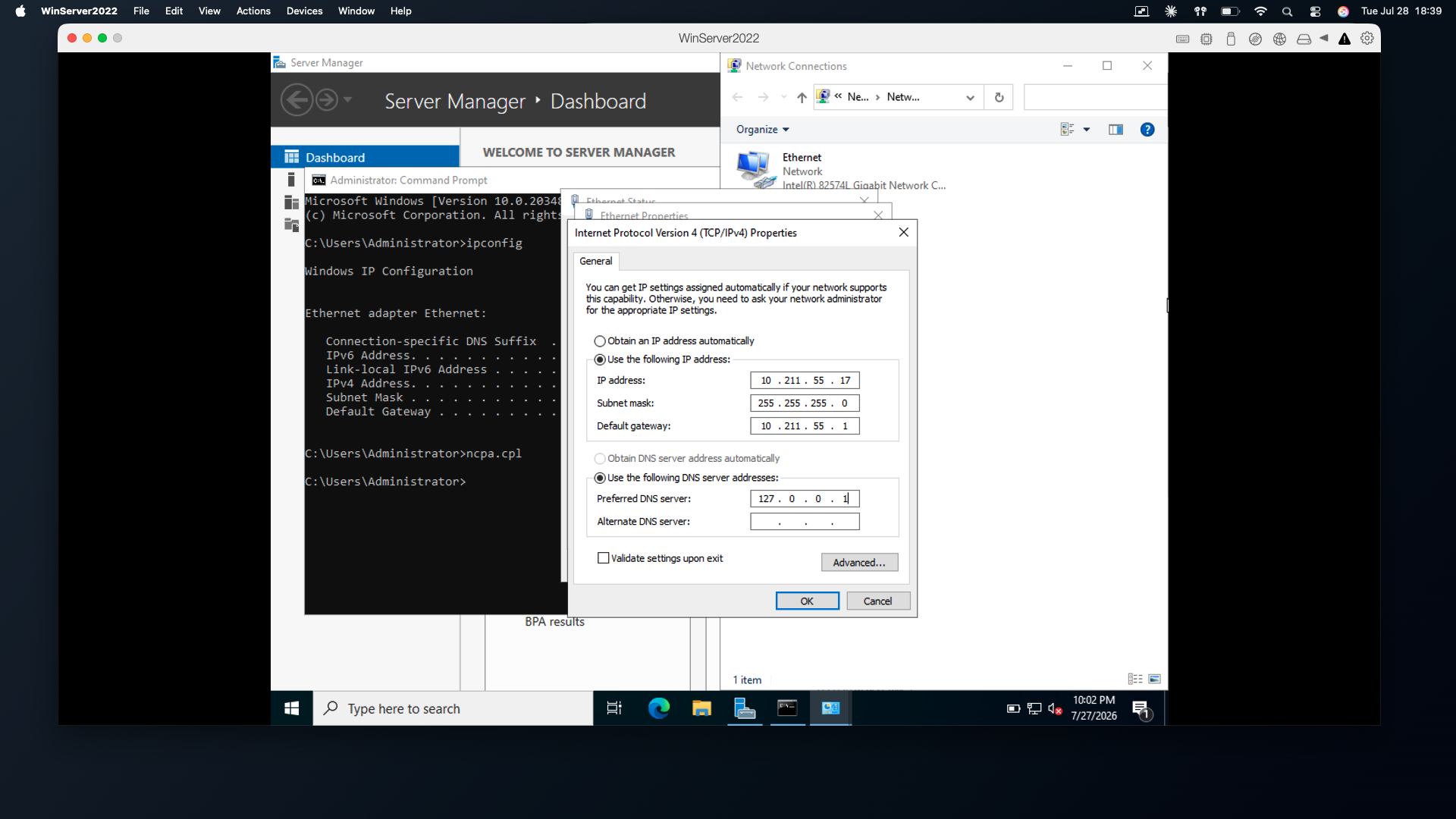
- Opened Network Connections directly with `ncpa.cpl` instead of navigating Control Panel.
- Opened the Ethernet adapter properties and selected Internet Protocol Version 4 (TCP/IPv4) → Properties.
- Switched to "Use the following IP address" and re-entered the DHCP-assigned values as static: 10.211.55.17 / 255.255.255.0 / 10.211.55.1.
- Set the preferred DNS server to 127.0.0.1 so the server resolves against itself once the AD DS DNS role is installed.
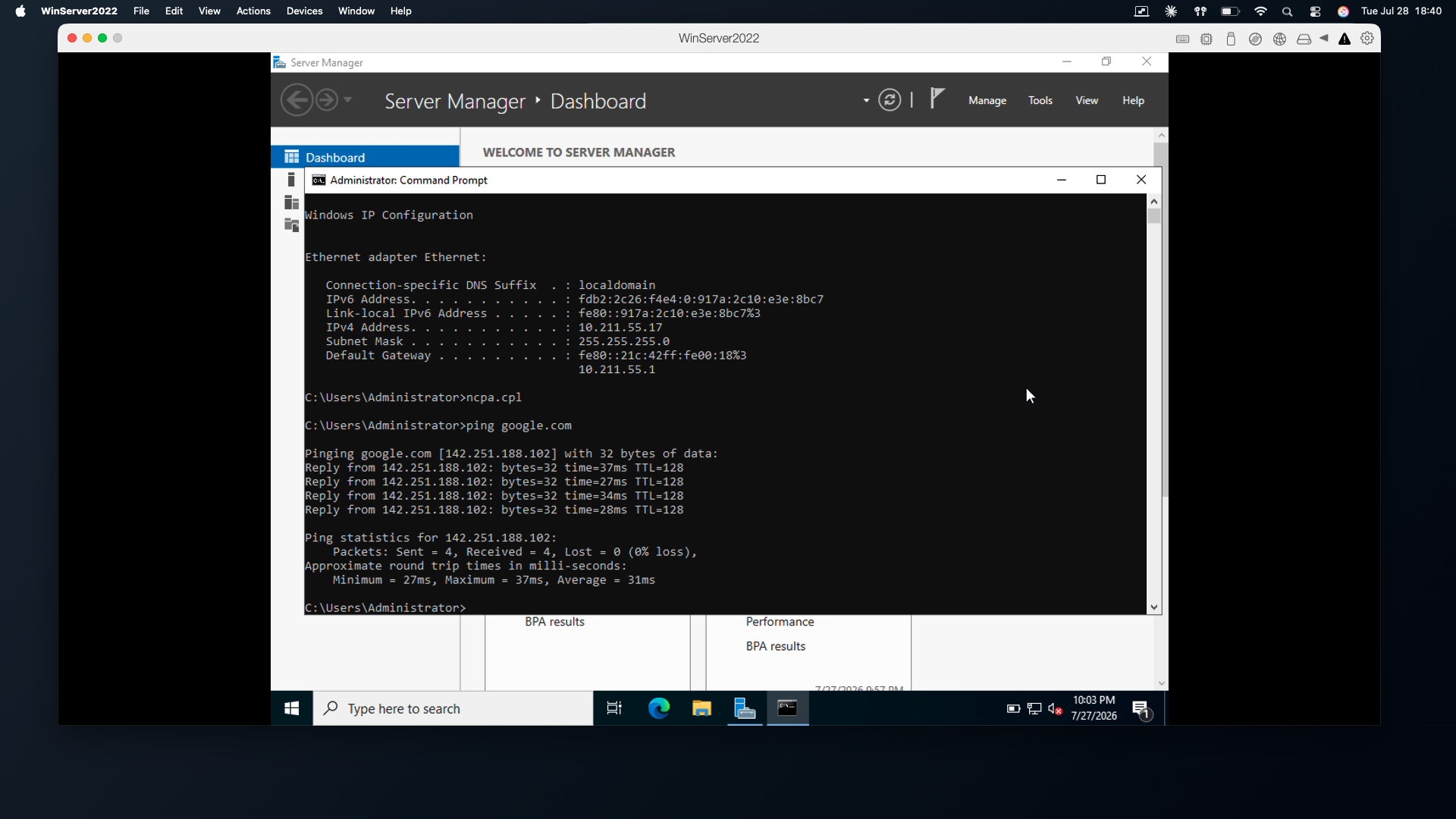
- Verified outbound connectivity with `ping google.com` — 4 replies received, 0% packet loss, average 31ms.
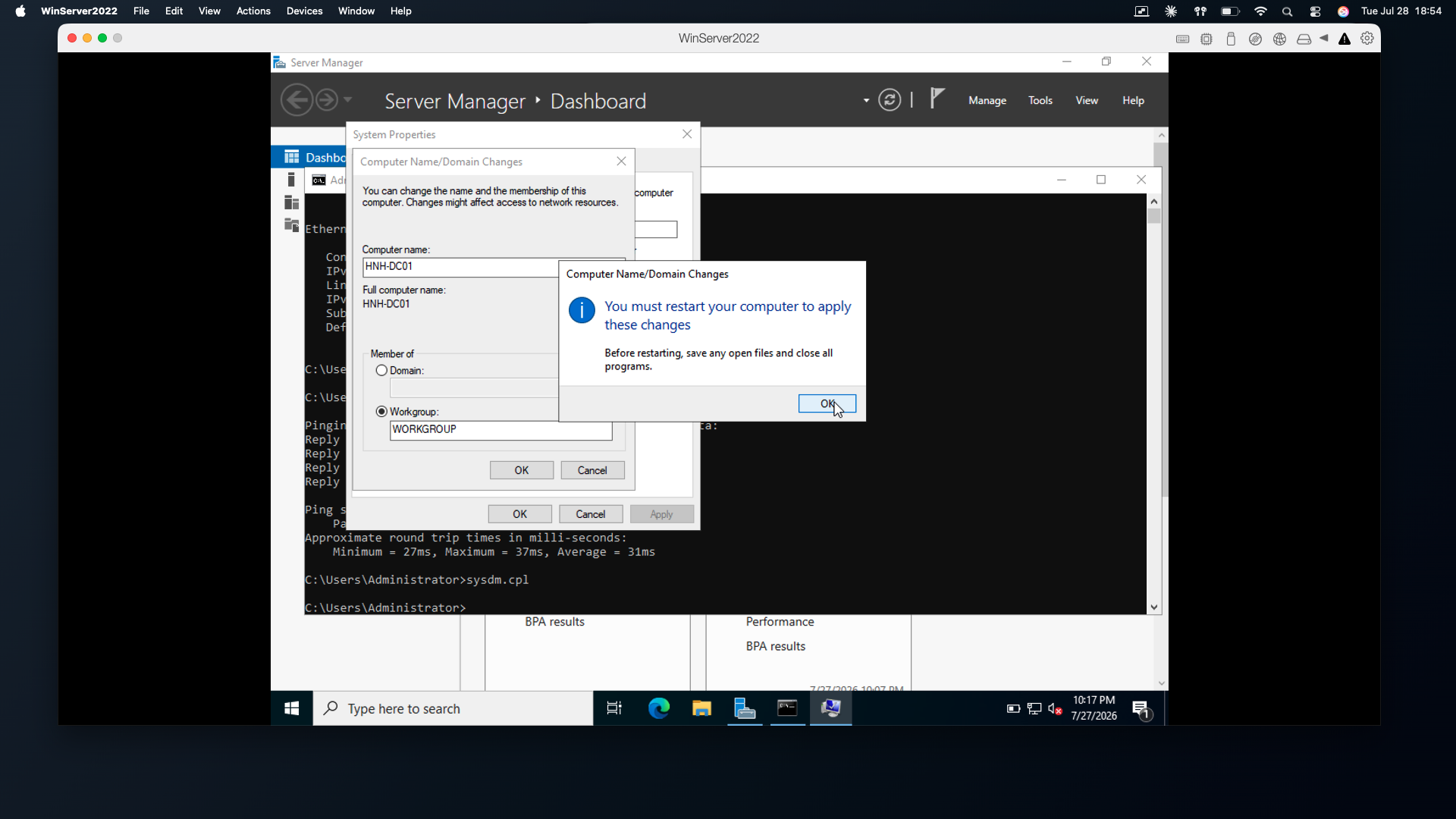
- Opened System Properties with `sysdm.cpl` → Change and renamed the computer to HNH-DC01.
- Accepted the mandatory restart to apply the new computer name.
Key Findings
- The VM sits on the Parallels shared network (10.211.55.x), so copying a generic 192.168.0.x address from a textbook would have broken outbound internet access.
- Reusing the existing DHCP lease values as the static assignment avoids IP conflicts and keeps the gateway path intact.
- Pointing DNS at 127.0.0.1 before installing AD DS avoids a reconfiguration step later — name resolution still worked because the AD DS DNS role had not yet taken over.
- A computer rename is not applied until the machine restarts; under ARM emulation this reboot takes noticeably longer than on bare metal.
- DC01 is a standard naming convention — the site/organisation prefix plus a numbered role makes the host self-describing in documentation.
Screenshots
Lessons Learned
- Always capture the real network configuration before setting a static address — the correct values come from the environment, not from a tutorial.
- Static addressing is a prerequisite for a domain controller because clients locate the domain through DNS records tied to a fixed address.
- Documenting the "before" state gives a clean rollback path and makes the write-up verifiable.
Future Improvements
- Install the Active Directory Domain Services role and promote HNH-DC01 to a domain controller.
- Create the forest root domain and verify DNS zone creation.
- Join a Windows client VM to the domain and test authentication.
- Build organisational units, users, and group policy objects for a realistic directory structure.
References
- Microsoft Learn — Install Active Directory Domain Services
- Microsoft Learn — Configure TCP/IP settings on Windows Server
- Parallels Desktop networking documentation